
For a lot of small online stores, a few weeks at the end of the year bring in a big share of the year’s sales. It’s also when a slow or broken WooCommerce checkout costs the most. A shopper with a full cart and a spinning wheel on the payment page doesn’t wait. They go somewhere else.
The good news: most slow checkout problems can be found and fixed well before the rush, if you test now. Here’s what to check, why checkout is different from the rest of your site, and how to tell when your store has outgrown its plan.
A store owner once came to us in the middle of their biggest sale of the year. At their old host, checkout had slowed to a crawl within the first hour, and shoppers were filling their carts and giving up at the payment page. Nobody had tested how the store held up under a rush. We moved them over and had checkout running smoothly by lunchtime, but they’d already lost the morning. Testing now, while things are quiet, means you find the problems before your customers do.
Why WooCommerce checkout is the hardest page on your site
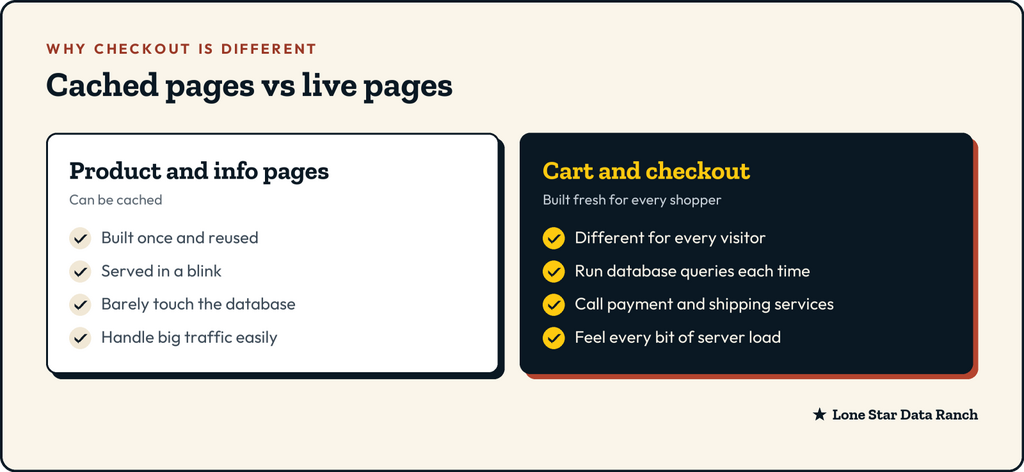
Most of your website can be cached. That means the server builds a page once, saves a ready-made copy, and hands that copy to every visitor. It’s fast and cheap, and it’s why a well-set-up WordPress site can handle a lot of traffic.
Cart, checkout and account pages can’t be cached that way. Every shopper’s cart is different, prices and stock can change, and payment details must never be shared between visitors. So every time someone views their cart or places an order, the server builds that page fresh, runs database queries and often talks to outside services for payment, shipping rates and tax.
That’s why a store can feel fast while you browse products and then crawl at checkout, especially when lots of people are checking out at once.
Six things to test before the rush
Do these on a quiet day, ideally a few weeks ahead. If your host offers a staging site (a private copy of your store), test changes there first.
- Place a real test order
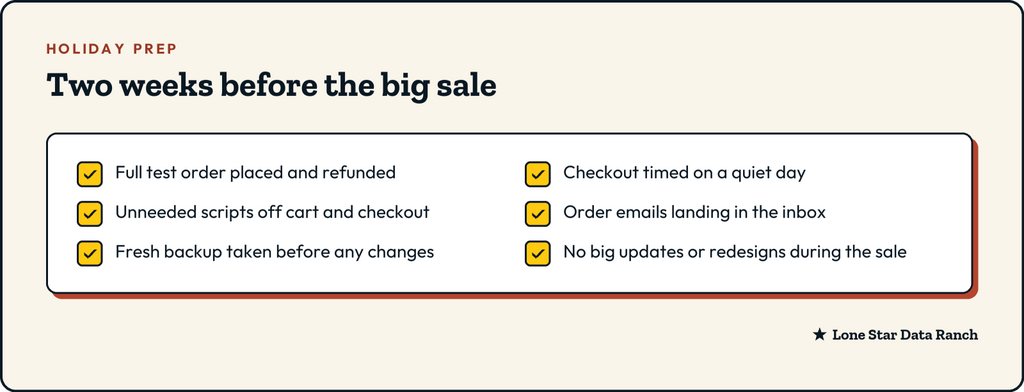
Go through the whole thing like a customer: add to cart, apply a coupon, choose shipping, pay, and check that the confirmation email arrives. Use a real card and refund yourself, or use your payment gateway’s test mode on a staging copy.
- Time the checkout
How long does it take from clicking “Place order” to seeing the thank-you page? If it’s several seconds on a quiet day, it will be worse under load.
- Check your plugins on checkout
Some plugins load scripts on every page, including checkout, even when they have nothing to do there. Popups, chat widgets, sliders and social feeds are common culprits. Removing them from cart and checkout pages, or removing them entirely, often helps.
- Look at shipping and tax calculations
Live shipping rates and tax lookups call outside services during checkout. If one of them is slow, every order waits. Know which ones you use, and whether flat rates would do for the holidays.
- Make sure order emails arrive
Order confirmations that land in spam generate support emails and nervous customers. Send a test order to a Gmail address and check where it lands.
- Clean up the database
Years of old orders, expired sessions and leftover data from removed plugins can slow down the queries checkout depends on. Clean up carefully, and only after a fresh backup.
If you only have time for one of these, make it the first. A real test order catches more problems than any tool.
Before the sale: a quick checklist
Plan your promotions around your store, not just your inbox
Big sales emails and social posts send a wave of shoppers at the same moment. That burst is harder on a store than the same number of visitors spread across a day. A few simple habits help:
- Send email campaigns in batches if your email tool allows it, instead of all at once.
- Avoid launching everything at the same minute. Stagger the email, the social posts and any ads.
- Watch the store for the first half hour after a big send, and place a test order yourself.
- Have a plan for problems, like who to contact and what to pause if checkout slows down.
Signs your store has outgrown its plan
Testing will tell you a lot. These are the signs it’s time for more horsepower, not just tuning:
- Checkout slows down noticeably when only a handful of people are buying at once.
- The store is fast at night and slow during busy daytime hours.
- You see errors or timeouts during sales or email campaigns.
- Your order volume has grown a lot since you picked your plan.
How our WooCommerce plans handle it
Our WooCommerce plans are built around the fact that checkout can’t be cached.
- WooCommerce Basic ($24.99/mo) runs up to three stores with Redis object caching, which speeds up the database work that cart and checkout pages depend on.
- WooCommerce Advanced ($74.99/mo) and WooCommerce Pro ($149.99/mo) put your store on its own fully managed dedicated VPS, so you’re not sharing resources during the busiest weeks of the year.
Everything runs on Ryzen 9 servers with NVMe storage and DDR5 memory, with daily off-site backups kept for 90 days.
A good rule of thumb: if checkout slows down on normal days, or you’re planning sales that send a big wave of shoppers at once, it’s time to look at Advanced. Open a ticket and we’ll go over your store’s numbers with you.
The short version
- Checkout can’t be cached, so it’s the page that feels holiday traffic first.
- Test a real order, time checkout, trim scripts, and check order emails, well before the rush.
- Freeze big changes during the sale.
- If checkout slows down under light load, it’s time for a bigger plan, not more plugins.
Ready for a store that keeps up? See our WooCommerce plans.
★ Lone Star Data Ranch ★
Need a hand with yours?
Fast WordPress hosting and day-to-day care from a crew in Dripping Springs, Texas.